How to connect Gmail or Google Workspace to Seekpitch
A step-by-step guide, with screenshots, to connecting a Google mailbox so Seekpitch can send your emails and bring replies back. It takes about ten minutes.
· 8 min read
Seekpitch sends your outreach from mailboxes you own. That way, every email comes from you, replies come back to you, and you keep full control of your conversations. This guide shows you how to connect a Google Workspace or Gmail mailbox, so that Seekpitch can both send your emails and read the replies for you.
You will need about ten minutes, access to the Google account you want to connect and, for Google Workspace, an administrator who can change one setting if it is switched off.
What you will do
- Turn on 2-Step Verification for the Google account.
- Create an app password for Seekpitch.
- Enter the mailbox details in Seekpitch.
- Send yourself a test email.
- Confirm that your domain is set up for sending (Google Workspace only).
Step 1: Turn on 2-Step Verification
Google only lets other services connect with a special password, called an app password, and it only offers app passwords to accounts that have 2-Step Verification switched on. 2-Step Verification is the setting that asks for a code from your phone when you sign in somewhere new.
- Sign in to the Google account you want to connect.
- Open myaccount.google.com/security.
- Under How you sign in to Google, select 2-Step Verification and follow the instructions to turn it on.
If it is already on, you can move straight to the next step.
Step 2: Create an app password
An app password is a 16-letter password that lets one service, in this case Seekpitch, use your mailbox. It is separate from your normal Google password, which Seekpitch never needs or sees. You can remove it at any time, and doing so disconnects Seekpitch immediately.
- Open myaccount.google.com/apppasswords. Google may ask you to sign in again.
- Type Seekpitch as the name and select Create.
- Google shows a 16-letter password. Copy it now, because Google will not show it again.
Keep this page open until you have finished the next step. If you lose the password, simply delete it and create a new one.
Step 3: Connect the mailbox in Seekpitch
Sign in to Seekpitch and select Integrations in the left-hand menu. You will see a card for each kind of mailbox. To connect Gmail or Google Workspace, use the SMTP card and select Connect SMTP. SMTP is simply the standard way email services pass messages to one another, and this card works with any provider, Google included.
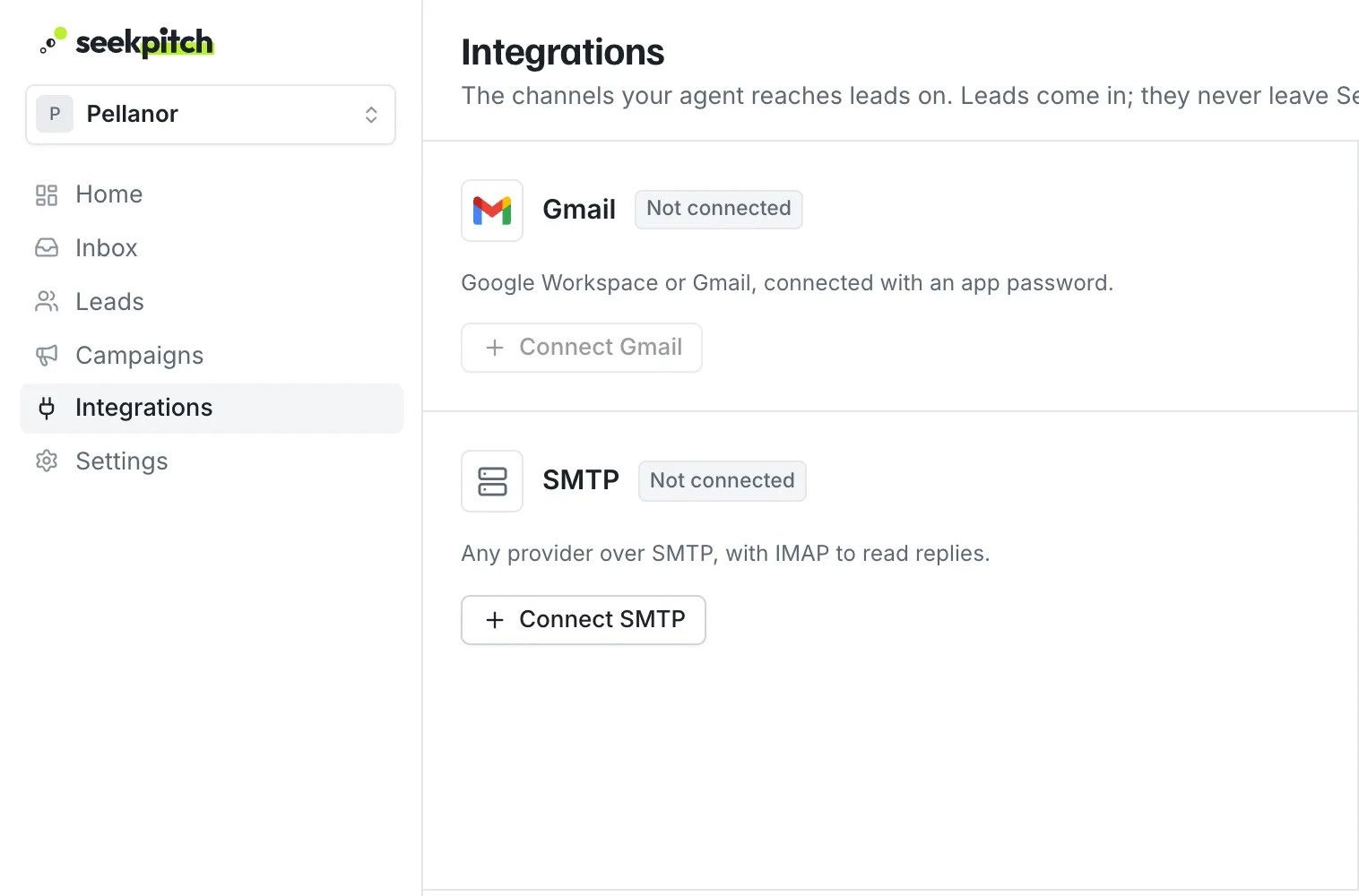
You may notice that the button on the Gmail card itself is greyed out. That is expected: the SMTP card connects Gmail and Google Workspace mailboxes in full, for both sending and replies.
A form opens. Fill it in with the details below. You only need to type what is in the right-hand column.
| Field | What to enter |
|---|---|
| Email address | The full address you are connecting, for example alex@trypellanor.com |
| Display name | The name people will see, for example Alex from Pellanor |
| SMTP server | smtp.gmail.com |
| Port | 465 |
| Security | SSL/TLS |
| Username | The same full email address |
| Password | The 16-letter app password from Step 2 (spaces are fine) |
| IMAP server (to read replies) | imap.gmail.com |
| IMAP port | 993 |
| IMAP security | SSL/TLS |
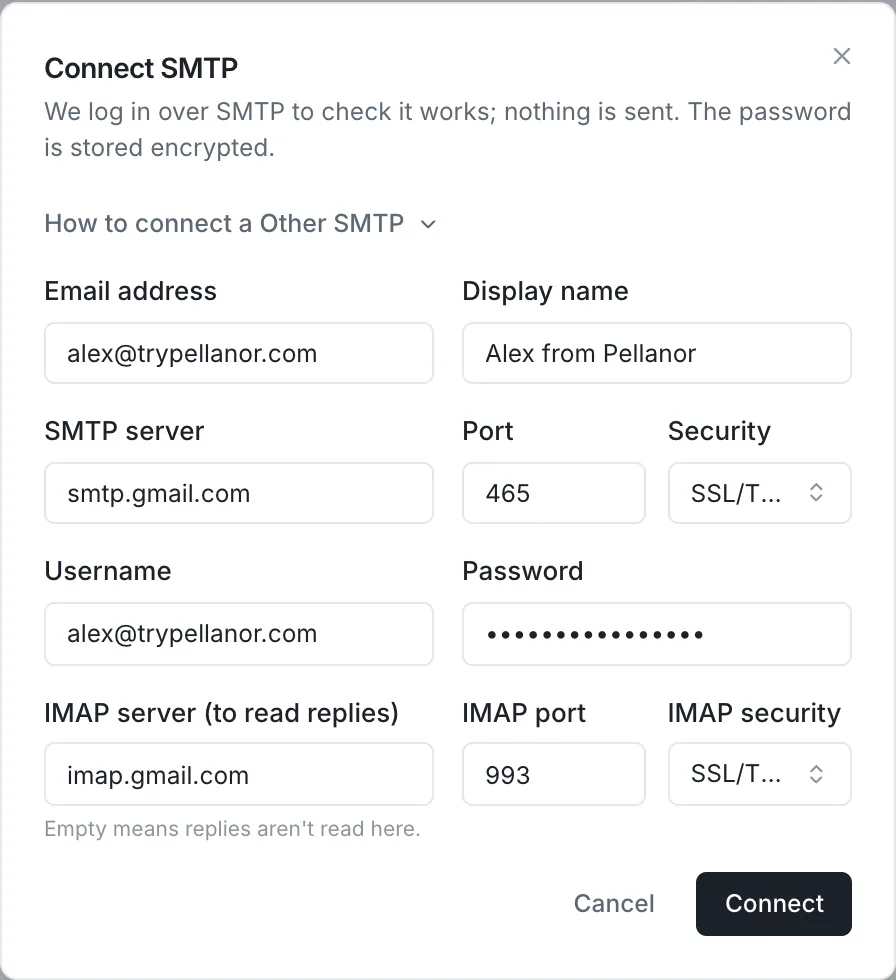
The IMAP server is what allows Seekpitch to read replies. If you leave it empty, your emails will still be sent, but replies will only appear in Gmail and not in your Seekpitch inbox. We recommend filling it in, so that follow-ups stop automatically when someone answers and you can see every conversation in one place.
When you are ready, select Connect. Seekpitch signs in to your mailbox to check that everything works. Nothing is sent at this point, and your app password is stored encrypted.
Step 4: Check the connection and send a test email
Once connected, the SMTP card shows the mailbox with a green Connected label. Open the mailbox row to see its details:
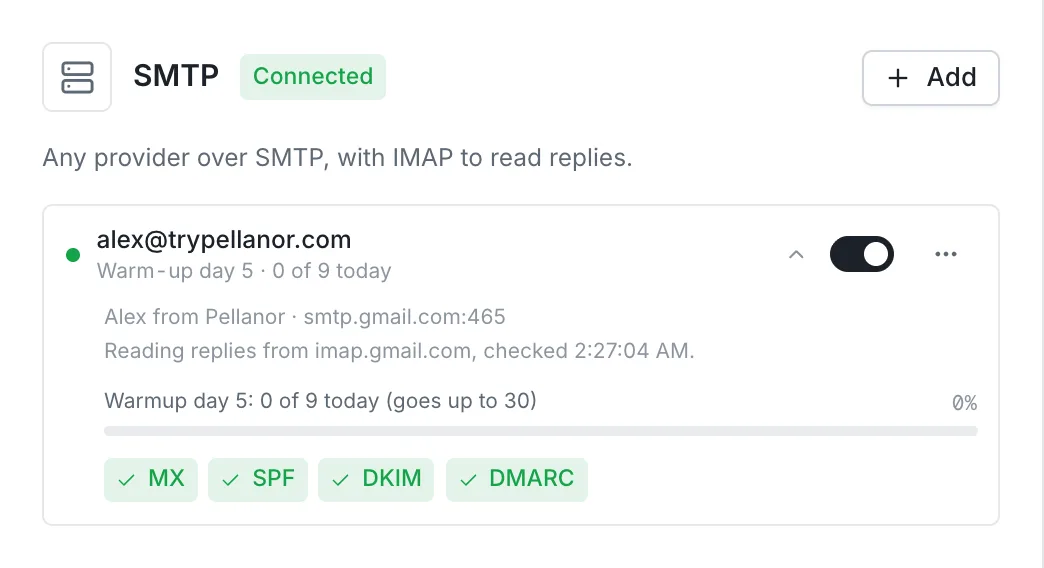
- Warm-up day and today's limit. New mailboxes start with a few emails a day and build up over three weeks. This protects your ability to reach inboxes. Learn how warm-up works.
- Reading replies from imap.gmail.com. This confirms that replies will arrive in your Seekpitch inbox.
- Four green checks. These confirm that your domain is set up so that other email services trust it. More on this in Step 5.
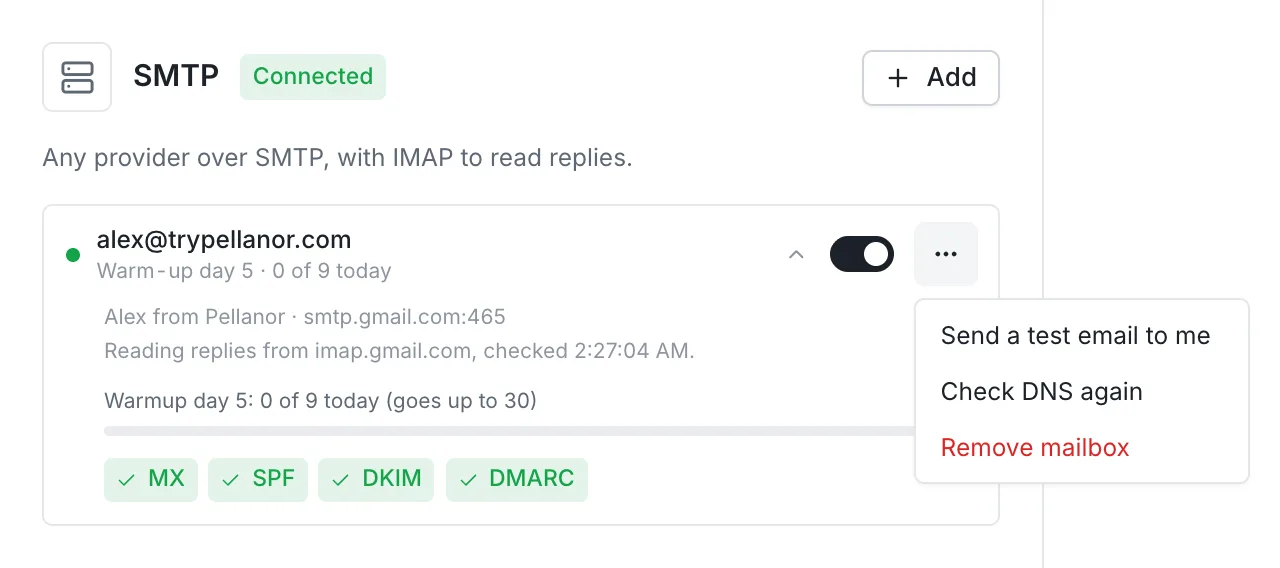
To be certain that sending works, select the three dots next to the mailbox and choose Send a test email to me. A short message arrives in your own inbox within a minute or two.
Step 5: Make sure your domain is trusted (Google Workspace)
Gmail, Outlook and other providers check every incoming email for three short records attached to the sender's domain. Think of them as the domain's identity papers. Without all three, many emails are sent to spam or rejected, so Seekpitch keeps a mailbox on hold until they are in place. The badges on the mailbox tell you which ones are missing.
If you use a personal @gmail.com address, Google handles all of this for you and you can skip this step. For a Google Workspace domain, you add the records once, at the company where you bought the domain (your domain host):
| Record | What to do |
|---|---|
| SPF (who may send for you) | Add a TXT record on the domain with the value v=spf1 include:_spf.google.com ~all. If one starting with v=spf1 already exists, add include:_spf.google.com to it rather than creating a second. |
| DKIM (a signature on every email) | In the Google Admin console, go to Apps, Google Workspace, Gmail, Authenticate email. Pick your domain and select Generate new record. Add the TXT record Google shows, named google._domainkey, at your domain host. Once it is live, return and select Start authentication. |
| DMARC (what to do with suspicious mail) | Add a TXT record named _dmarc with the value v=DMARC1; p=none. This is a safe starting point that simply asks providers to report problems. |
Changes can take from a few minutes up to two days to take effect. When they have, open the mailbox menu in Seekpitch and select Check DNS again. The badges turn green and the mailbox is ready to send.
If something does not work
“Google didn't accept that password”
Gmail only accepts an app password here, not your normal Google password. Create an app password as described in Step 2 and paste it into the Password field. Also check that the Username is the full email address.
“Can't read replies”
Seekpitch could send but could not open the mailbox to read replies. On Google Workspace, an administrator may have turned off mailbox access for other apps. In the Google Admin console, under Apps, Google Workspace, Gmail, End User Access, they can allow IMAP access for your account. Then check that the IMAP server is imap.gmail.com with port 993.
The mailbox stopped working after a while
When you change your Google password, Google cancels all of your app passwords as a security measure. Create a new app password, then remove the mailbox in Seekpitch and connect it again with the new password.
The mailbox shows “On hold”
One or more of the records in Step 5 is missing. The message tells you which one. Add it, wait for it to take effect, and select Check DNS again.
How many mailboxes should I connect?
Each mailbox sends up to 30 campaign emails a day once it is fully warmed up, which keeps it well within Google's own limits and looks like a normal working day. If you want to reach more people, connect more mailboxes rather than sending more from one. Seekpitch spreads your emails across all of them automatically. The number of mailboxes you can connect depends on your plan, as shown on our pricing page.
You are ready
That is all. Your Google mailbox is connected, Seekpitch can send on your behalf at a safe pace, and every reply will appear in your Seekpitch inbox, sorted and with a draft answer ready for you to review. If you have any questions, reply to any email from us or write to hello@seekpitch.com, and we will help you finish the setup.
Paste your website. Get leads that fit.
Try it free for 7 days with 50 qualified leads. No card needed, and nothing is sent without your approval.